
HEIC Won't Open on Windows 11? Here's How to Fix It (2026)
HEIC won't open on Windows 11? Three fixes ranked by speed: convert online with no install, install the Microsoft Store extensions, or switch your iPhone format.
By HeicToPng Team

Quick answer
Windows 11 can't open HEIC files because the format relies on the HEVC codec, which Microsoft doesn't include by default. You have three ways to fix it:
- Convert the photos to PNG or JPG once — works in your browser, no install, no Microsoft account.
- Install two Microsoft Store extensions so HEIC opens natively. One is free, one is usually $0.99.
- Stop your iPhone from creating HEICs by switching the camera format setting.
Pick fix 1 if you just need to share or upload a few photos right now. Pick fix 2 if you'll keep receiving HEICs forever and want them to open like JPEGs do. Pick fix 3 if you control the iPhone the photos come from.
Why Windows 11 doesn't open HEIC by default
HEIC is the file format Apple has used for iPhone photos by default since iOS 11 in 2017. The container is HEIF; the actual image data inside is compressed with HEVC (H.265), the same codec used for 4K video. Microsoft licenses HEVC separately from Windows, so out of the box Windows 11 can read the HEIF wrapper but can't decode the HEVC-compressed pixel data.
What you see on screen depends on which extensions are partially installed:
- A solid black or grey square in the Photos app. HEIF Image Extensions is present, HEVC Video Extensions is missing. The container opens; the pixels don't decode.
- "Photos can't open this file." Neither extension is installed.
- A generic file icon in File Explorer with no thumbnail. Same root cause: the thumbnail provider can't decode HEVC.
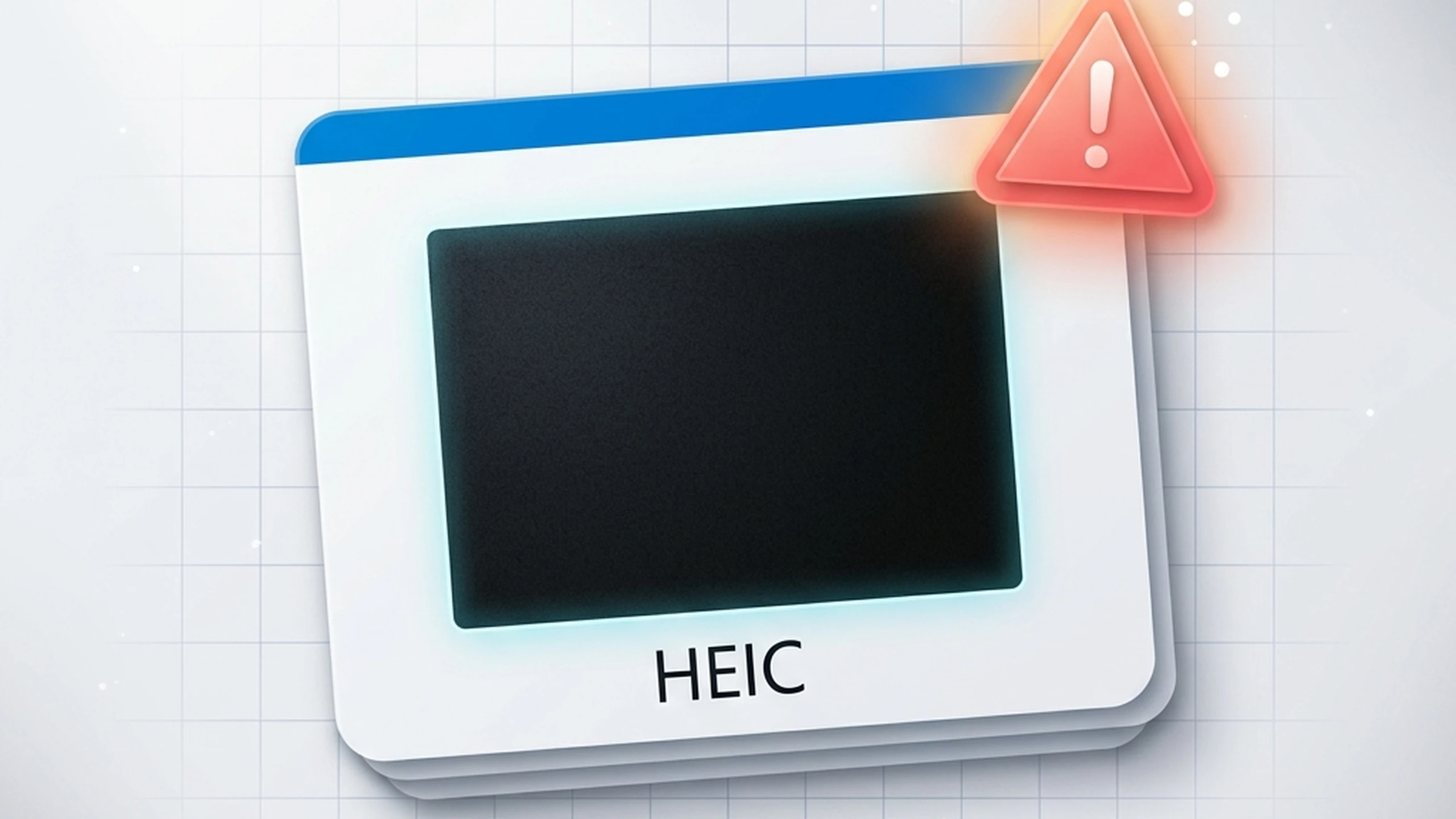
The Windows 11 24H2 update did not change this, and Photos app updates haven't either. As of 2026, you still need the HEVC codec one way or another.
Fix 1: Convert HEIC to PNG in your browser
If you have a handful of photos and just need them open today — to upload to a form, attach to an email, paste into a doc — converting is faster than installing anything.
This works because the browser does the HEVC decoding using a JavaScript and WebAssembly implementation, so Windows itself never has to handle the codec. The PNG you get out opens in any image viewer, including the default Windows 11 Photos app, and embeds in any tool you'd paste a regular PNG into.
The conversion runs entirely on your machine. No upload, no account, no server-side file size cap. Drop in HEIC files, get PNGs, done. PNG is lossless, so the resulting image quality matches the HEIC pixel-for-pixel. Pick JPG instead if you need smaller files for email — JPG is roughly 5–10× smaller than PNG for photos at visually equivalent quality.
When this is the right fix:
- You're on a work or school PC where Microsoft Store apps are blocked.
- You only have a few HEIC files to deal with.
- You don't want photos uploaded anywhere.
- You want to skip the $0.99 charge for HEVC Video Extensions.
When it's not:
- You'll keep receiving HEIC files indefinitely from someone's iPhone. Installing the extensions once is less repetitive long-term.
Fix 2: Install the Microsoft Store extensions
This makes Windows 11 open HEIC files natively, with thumbnails in File Explorer and direct viewing in the Photos app. You need two extensions, in this order.
Step 1 — HEIF Image Extensions (free)
- Open the Microsoft Store app.
- Search for HEIF Image Extensions (or open the official Microsoft Store listing directly).
- Click Get. Install takes a few seconds.

This handles the HEIF container but not the HEVC-compressed image data inside, so HEIC files will still appear blank or black until you complete step 2.
Step 2 — HEVC Video Extensions ($0.99, sometimes free)
The standard Microsoft Store listing is HEVC Video Extensions at $0.99. There's also a free version called HEVC Video Extensions from Device Manufacturer that ships pre-installed on many consumer laptops from Lenovo, HP, Dell, and ASUS. It's hidden from Store search results, so most people don't know it exists.
If your PC was sold after 2018 and you can't find this free version in the Store, search the web for the current direct product URL — Microsoft has changed it periodically, and any tutorial more than a year old may point to a dead link. The paid version is functionally identical if the free one isn't available for your hardware.
After both extensions install, restart the Photos app. Double-clicking a HEIC file will now open it directly. File Explorer thumbnails appear within a minute or two as the indexer catches up.
Fix 3: Stop the iPhone from creating HEICs
If the HEIC files are coming from your own iPhone, you can switch the camera to capture JPEG by default. Existing HEICs on Windows still need fixing through fix 1 or 2, but new photos taken after this change will be in a format Windows opens natively.
On the iPhone:
- Open Settings.
- Scroll to Camera.
- Tap Formats.
- Choose Most Compatible.
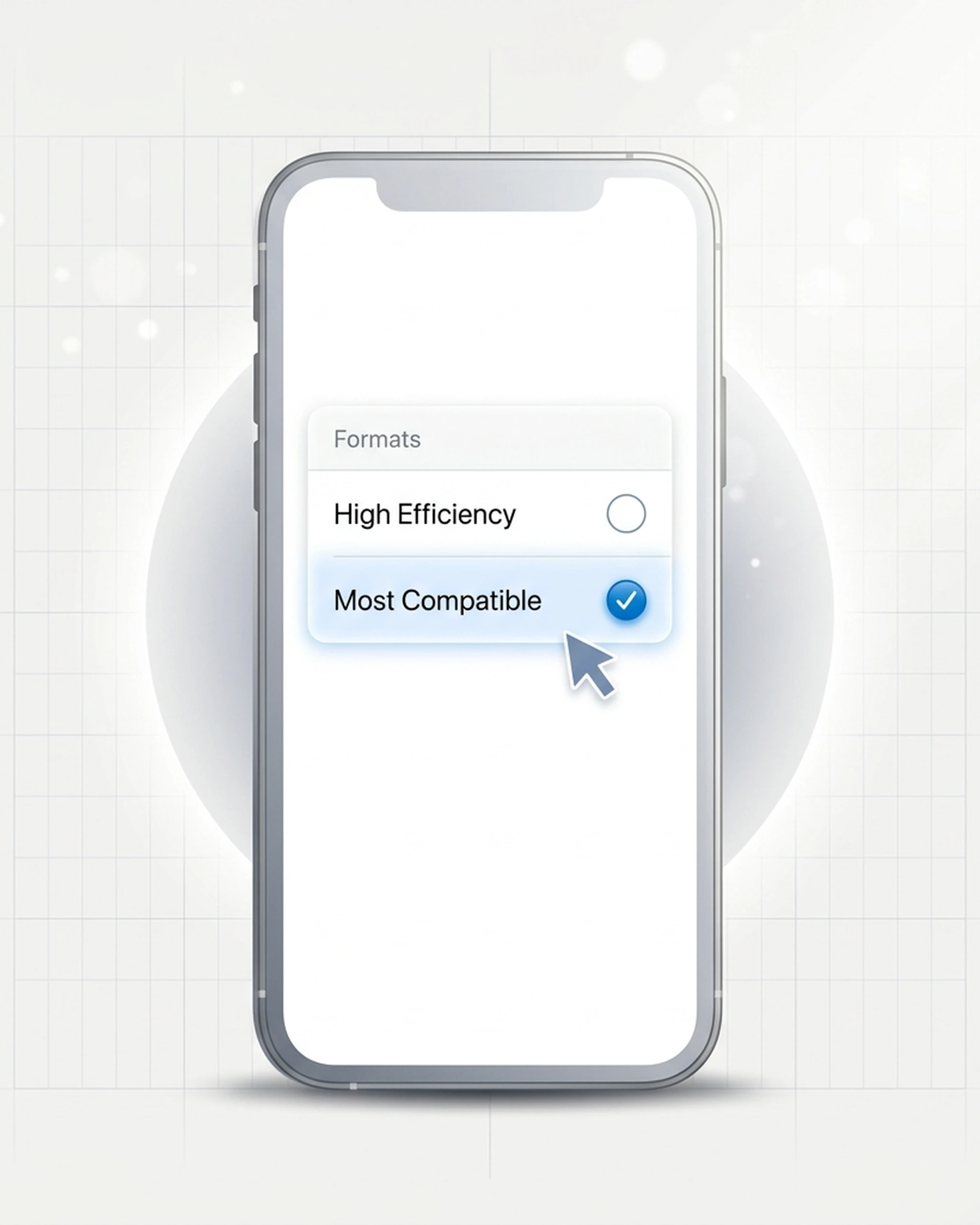
Settings → Camera → Formats → Most Compatible
Tradeoff: JPEG files are roughly twice the size of HEIC at the same visible quality. For a 12-megapixel photo, that's about 3 MB instead of 1.5 MB. If iPhone storage is tight, this adds up over thousands of photos.
There's a gentler middle option. In iOS 18 or iOS 26, go to Settings → Apps → Photos, scroll down, and make sure Keep Originals is NOT selected. The phone keeps saving as HEIC for itself but transcodes to JPEG when you plug into a PC over USB. This doesn't apply to AirDrop, email, or iCloud — only to direct USB transfers — so it's a partial fix at best. (Apple moved this setting under the new Apps section in iOS 18; older iOS still has it at Settings → Photos → Transfer to Mac or PC.)
Quick comparison: which fix is right for you?
| Situation | Best fix |
|---|---|
| Need to open 1–10 HEIC files right now | Fix 1 (convert online) |
| Receive HEIC files from others regularly | Fix 2 (install extensions) |
| Photos come from your own iPhone | Fix 3 (change format) + Fix 1 for existing files |
| Work or school PC, Store apps blocked | Fix 1 only |
| Don't want to pay $0.99 for HEVC | Try the free OEM version, otherwise Fix 1 |
Common variants of this problem
HEIC opens but shows a black image. HEIF Image Extensions is installed, HEVC Video Extensions is missing. Install the second extension, or convert to PNG to skip the codec entirely.
HEIC opens in Photos but won't open in another app like Word or Photoshop. Most third-party apps don't use the Microsoft Store extensions even when those extensions are installed. They have their own codec stacks. Converting to PNG is usually faster than tracking down per-app HEIC plugins.
Thumbnails missing in File Explorer after installing extensions. Wait a few minutes for the thumbnail cache to rebuild. To force it: open Disk Cleanup, check Thumbnails, and clean. The next folder browse regenerates them.
HEIC files from a Samsung Galaxy phone. Newer Samsung phones can also save in HEIC. The fix paths above work the same way — the bottleneck is the HEVC codec, not which phone produced the file. If you also need to view those HEICs directly on the phone, see our Android-specific guide.
Files with extensions like .HEIF, .HEIX, or .HVC1. These are variants of the same family. HEIF is the umbrella container; HEIC, HEIX, and HVC1 are subtypes. Everything in this guide applies to all of them.
What about AVIF?
AVIF is a newer image format that uses AV1 compression instead of HEVC. Windows 11 has native AVIF support and doesn't need any Store extensions for it. If you're choosing a format for new content (web exports, screenshots, archives), AVIF is the safer cross-platform choice today — see our side-by-side format comparison for HEIC, PNG, JPG, WebP, and AVIF tradeoffs. For HEIC files you've already received, the three fixes above are still your only options.
Frequently asked questions
Related articles

How to Convert HEIC to JPG on a Mac: 5 Free Ways (2026)
Convert HEIC to JPG on a Mac with no extra software — Finder, Preview, Photos, Shortcuts, or Terminal. Tested on a real iPhone photo, including what happens to GPS.

How to Turn Off HEIC on iPhone (2026 Step-by-Step)
Stop your iPhone from saving photos as HEIC. iOS 26 + iOS 18 steps, the hidden Transfer setting, and what to do with HEICs you already have.

HEIC vs PNG: Quality, Size, and When to Convert (2026)
HEIC vs PNG compared on file size, quality, transparency, and compatibility — with a clear take on when converting HEIC to PNG is actually worth it.