Loading…

HEIC to BMP Converter — Uncompressed 24-bit Bitmaps in Your Browser
Some older Windows programs, embroidery digitizers, and engraving machines still refuse anything but a plain .bmp. This converter turns your iPhone HEIC photos into 24-bit uncompressed BMP files right in the browser, so the pixels land exactly as the machine expects and nothing is ever uploaded.
24-bit, uncompressed
Batch + ZIP
Nothing uploaded
Pixel-exact
Private & on-device — your HEIC files are converted locally in your browser and never uploaded to any server.
No internet needed after this page loads — turn off your Wi-Fi and HEIC conversion still works offline.
Your photos stay private — 0 bytes uploaded to our servers
Why Convert HEIC to BMP (When Almost Everything Reads PNG)
BMP exists on this site for one reason: a handful of programs read nothing else. If your software opens PNG or JPG, use those instead — but when a machine demands a raw bitmap, BMP is the only answer.
Some legacy and industrial software only accepts a raw .bmp
Older Windows desktop applications, embroidery digitizing tools like Wilcom and Brother PE-Design, laser and CNC engraving software, label printers, and many embedded or industrial HMI screens were written before modern formats existed and still expect an uncompressed BMP. Converting HEIC to BMP is often the only way to get an iPhone photo into one of these workflows.
Uncompressed means the decoder is trivial and the pixels are exact
A 24-bit BMP stores every pixel as three raw bytes with no compression step, so even firmware with a few kilobytes of code can read it and there is no decompression that a limited device might get wrong. You trade file size for the simplest, most universally readable raster format Windows ever shipped.
Pick BMP only when the target can't read PNG or JPG
BMP files are large because they skip compression entirely, and they carry no transparency or EXIF. For anything on the web, in an email, or in a modern editor, PNG keeps transparency at a fraction of the size and JPG is smaller still. Reach for BMP when a specific piece of software leaves you no other choice.
Where a HEIC to BMP Converter Actually Gets Used
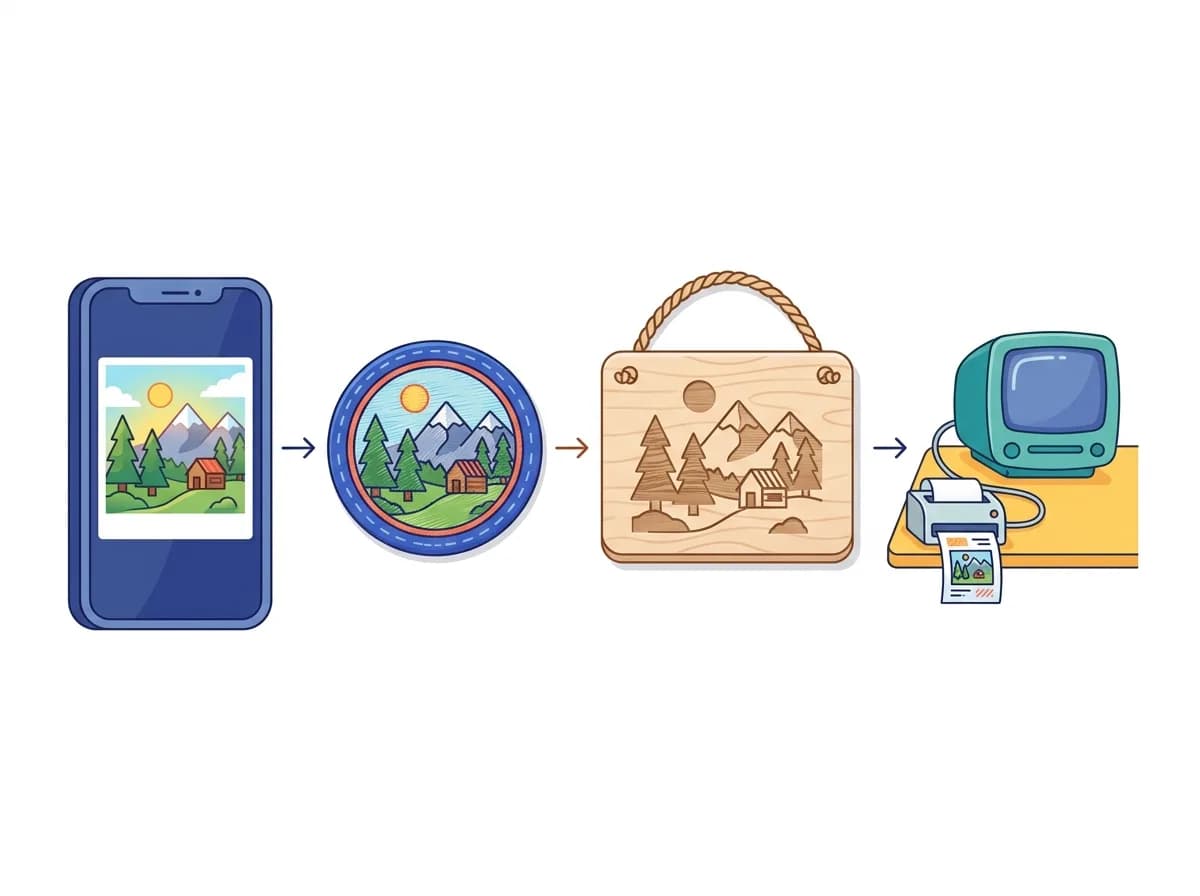
BMP isn't a format for the web — it's what machines and older software still demand when they want a raw, uncompressed bitmap. These are the real workflows people convert an iPhone HEIC to BMP for.
- Embroidery and cutting machines — Digitizers like Wilcom and Brother PE-Design import a BMP, then trace it into stitches for a cap, patch, or tote bag.
- Laser and CNC engraving — Engraving software raster-fills straight from a plain bitmap to burn a photo onto wood, acrylic, leather, or metal.
- Legacy Windows software and label printers — Older line-of-business tools and industrial displays that predate PNG still expect a 24-bit BMP on import.
HEIC to BMP: How the Common Methods Compare
You can repaint each photo in an editor, script a command-line tool, upload to a web converter, or run this in-browser tool. They reach the same .bmp by very different routes.
| Method | Install Needed | Bulk Support | Speed | Privacy | Ease of Use | Best For |
|---|---|---|---|---|---|---|
MS Paint (open, then Save As BMP) | Install Needed:No (Windows only) | Bulk Support:No — one file at a time | Speed:Slow per file | Privacy:Local | Ease of Use:Manual, tedious | Best For:A single photo on a Windows PC that already opens HEIC |
Photoshop / GIMP export | Install Needed:Yes (paid or large download) | Bulk Support:Via batch actions or scripts | Speed:Slow per file | Privacy:Local | Ease of Use:Heavy app for one conversion | Best For:If you are already working in the editor |
ImageMagick on the command line | Install Needed:Yes (plus a HEIC delegate) | Bulk Support:Yes (with shell loops) | Speed:Very fast | Privacy:Local | Ease of Use:Developer-only | Best For:Scripted pipelines on Mac or Linux |
Upload-based online BMP converters | Install Needed: No | Bulk Support:Sometimes — daily caps common | Speed:Bottlenecked by upload of large files | Privacy:Files sent to a third-party server | Ease of Use:Easy | Best For:Occasional one-off use |
This browser-based converterRecommended Recommended | Install Needed: No | Bulk Support:Yes + ZIP, no daily cap | Speed:Runs on your CPU — scales with your machine | Privacy:Files never leave your device | Ease of Use:Drag, drop, download | Best For:Getting iPhone photos into software that only reads BMP |
About size: a 24-bit BMP stores three uncompressed bytes per pixel, so the file is roughly width × height × 3 bytes regardless of how simple the image looks. A photo capped at 2048 px on the long side lands near 9 MB, a full 12-megapixel iPhone photo near 36 MB, and a 48-megapixel shot near 144 MB. That is expected, not a conversion error — it is the price of a format that skips compression so that almost anything can read it.
How to Convert HEIC to BMP Online
Converting HEIC to BMP takes three steps with no account and no install, and the whole conversion runs inside your browser so your photos are never uploaded to a server.
Drop your HEIC or HEIF files in
Drag and drop a single image or a whole folder at once. The picker accepts .heif as well as .heic — they are the same format under two extensions — and decodes both to the same bitmap.

Choose how large the bitmap should be
Because BMP is uncompressed, file size climbs fast with resolution, so the long side is capped at 2048 pixels by default to keep files manageable. Switch Max dimension to Original when the target software needs the full iPhone resolution.

Download a single .bmp or a ZIP of bitmaps
One photo comes back as a single 24-bit .bmp file. A batch is bundled into a ZIP with your original filenames preserved, so IMG_1234.heic becomes IMG_1234.bmp and your import step keeps working.

Batch HEIC to BMP — Convert a Whole Folder at Once
When a machine needs a stack of bitmaps, converting them one by one wastes time, so this tool processes an entire selection in a single run and hands you back one ZIP.
Every conversion runs on your own computer
The HEIC decode and the BMP encode both happen on your device's processor, so a folder of photos takes only as long as your machine needs — there is no upload of hundreds of uncompressed megabytes to someone else's server and no download afterward.
The ZIP keeps your original filenames
Each bitmap in the archive keeps the name of the photo it came from, so a digitizing or engraving project that references specific filenames still lines up after conversion instead of pointing at random hashes.
No daily caps, sign-up, or watermark
Convert as many HEIC files to BMP as you need, back to back, without an account or a per-day limit, and the bitmaps come out clean with nothing stamped onto the pixels.
Convert HEIC to any format, on any device
- HEIC to PNGBatch-convert HEIC to PNG in your browser — free, private, no upload.
- HEIC to JPGConvert HEIC to JPG that opens anywhere — email, forms, and social uploads.
- HEIC to WebPConvert HEIC to WebP — smaller files, sharp quality, made for the web.
- HEIC to PDFCombine HEIC photos into a single PDF for forms, claims, and filing.
- HEIC to MP4Turn HEIC photos into an MP4 slideshow for TikTok, Reels, and Stories.
- HEIC to GIFTurn HEIC photos into a looping GIF for chats, forums, and Slack.
HEIC to BMP — Frequently Asked Questions
Answers on converting HEIC to BMP — why the files are so large, why there is no quality slider, how transparency and EXIF are handled, which programs open BMP, and how resizing works.
1
Why is my BMP file so much larger than the HEIC?
BMP stores every pixel uncompressed, while HEIC uses heavy modern compression, so the same photo can grow from a couple of megabytes to tens of megabytes. A 24-bit BMP is close to width × height × 3 bytes: about 9 MB for an image capped at 2048 px on the long side, roughly 36 MB for a full 12-megapixel iPhone photo, and around 144 MB for a 48-megapixel shot. The large size is normal for BMP and is exactly why the tool caps the long side at 2048 px unless you ask for the original resolution.
2
Why isn't there a quality or compression slider?
A 24-bit BMP is always a pixel-exact copy with no compression, so there is no quality setting to trade off — every conversion already preserves the pixels perfectly. The only lever that changes file size is the image's dimensions, which is why the tool offers a Max dimension option instead of a quality slider. If you want a smaller file with an adjustable quality, convert HEIC to JPG or WebP instead.
3
What happens to transparent areas in my photo?
A standard 24-bit BMP has no transparency channel, so any transparent or semi-transparent pixels are composited onto a solid white background during conversion. iPhone photos are almost always fully opaque, so this rarely matters in practice. If you need to keep transparency, convert HEIC to PNG instead, which preserves the alpha channel.
4
Will the BMP keep my photo's date, GPS, or camera info?
No — the BMP format has no standard place to store EXIF metadata, so the date taken, GPS coordinates, and camera details are dropped during conversion. This is a property of BMP itself, not a choice the tool makes. If you need to carry metadata forward, convert HEIC to JPG, which supports EXIF and also lets you strip GPS separately.
5
Which programs can open the BMP files this makes?
Essentially every image viewer and editor on Windows, plus most cross-platform ones: Microsoft Paint, Photoshop, GIMP, IrfanView, and the specialized embroidery, engraving, and label software that asked for BMP in the first place. BMP is one of the oldest and most widely supported raster formats, which is the whole reason these older tools settled on it.
6
Does this work with .heif files, or only .heic?
Both. HEIC and HEIF share the same container and the same underlying encoding — HEIC is simply Apple's brand name for the HEIF images an iPhone produces. The converter decodes .heic and .heif identically and outputs the same 24-bit BMP either way.
7
Why is the long side capped at 2048 pixels by default?
Because BMP is uncompressed, a full-resolution iPhone photo can produce a file of 36 MB or more, which is awkward to handle and often larger than the target software or a USB transfer expects. Capping the long side at 2048 px keeps a typical bitmap near 9 MB while staying sharp enough for most machine workflows. When you genuinely need full resolution, switch Max dimension to Original before converting.
8
Can I convert a whole batch of HEIC photos to BMP at once?
Yes. Drop in as many files as you like and they are all converted in one run, then bundled into a single ZIP with the original filenames preserved. There is no per-day limit, and because everything runs in your browser, a large batch is limited only by your own computer's speed rather than an upload connection.
9
Why do my bitmaps come out upright instead of sideways?
iPhones record orientation as a rotation flag rather than rotating the pixels, and any program that ignores that flag shows the photo on its side. This converter reads the flag and bakes the correct rotation directly into the bitmap before writing it, so the BMP displays upright in Paint, your editor, and the machine software alike. Auto-rotate stays on by default in Advanced Settings.
Convert HEIC to BMP now
Drop your iPhone HEIC photos in and download clean 24-bit bitmaps in seconds — uncompressed, upright, and ready for the software that only reads BMP, all without leaving your browser.