
HEIC vs PNG: Quality, Size, and When to Convert (2026)
HEIC vs PNG compared on file size, quality, transparency, and compatibility — with a clear take on when converting HEIC to PNG is actually worth it.
By HeicToPng Team

Quick answer
PNG is lossless and universally compatible — every device, browser, and editor reads it. HEIC is around 8 to 15 times smaller than PNG at visually identical photo quality, but it's lossy and needs codec extensions on Windows.
The decision is not "which is better." It's "what is this image for?"
- iPhone photo you want to store, edit later, or share with iPhone users — keep HEIC.
- Screenshot, logo, diagram, anything needing transparency or pixel-perfect text — use PNG.
- Photo you need to send to anyone outside Apple's ecosystem — convert to JPG for smaller files, PNG when you need lossless.
| Aspect | HEIC | PNG |
|---|---|---|
| Compression | Lossy (HEVC / H.265) | Lossless (DEFLATE) |
| Typical 12 MP photo size | ~1.5 MB | ~12–18 MB |
| Color depth | 10-bit | 8-bit (PNG-24) or 16-bit (PNG-48) |
| Transparency | In spec, not in practice | Native alpha channel |
| HDR / Live Photo / depth | Yes | No |
| Browser rendering | Safari only | Every browser, since the 1990s |
| Patent / royalty | HEVC license fees | Royalty-free (W3C standard) |
| Best for | iPhone photo storage | Screenshots, logos, transparency, archival |
The rest of this article is the why, with concrete numbers and a decision matrix you can apply to your own photos.
What HEIC and PNG actually are
PNG (Portable Network Graphics) is a W3C recommendation first published in 1996 to replace GIF. It uses DEFLATE — the same lossless compression behind ZIP — to encode images that decompress back to the exact bytes you put in. Every pixel is preserved. The patents on PNG were never enforceable; it has been royalty-free since day one.
HEIC is what Apple calls a HEIF file — a 2013 ISO standard (ISO/IEC 23008-12) that wraps image data compressed with HEVC, the same codec used for 4K video. Apple flipped iPhone cameras to HEIC by default in iOS 11 in 2017 (Apple support note). HEVC is patent-encumbered, which is why Microsoft charges $0.99 for the Windows 11 codec extension and why Android adoption was slow until very recently.
The key distinction: PNG was designed for graphics with sharp edges and flat colors — the things that make GIF look bad (dithering, banding, blurred text). HEIC was designed for photos, where lossy compression you can't see saves a lot of space.
So they aren't really competing for the same job. Most of the confusion around "HEIC vs PNG" comes from people who only know them as "the format my iPhone uses" vs. "the format that opens everywhere," which misses the lossy-vs-lossless point underneath.
What actually changes when you convert HEIC to PNG
1. File size — the biggest gap of any image format pair
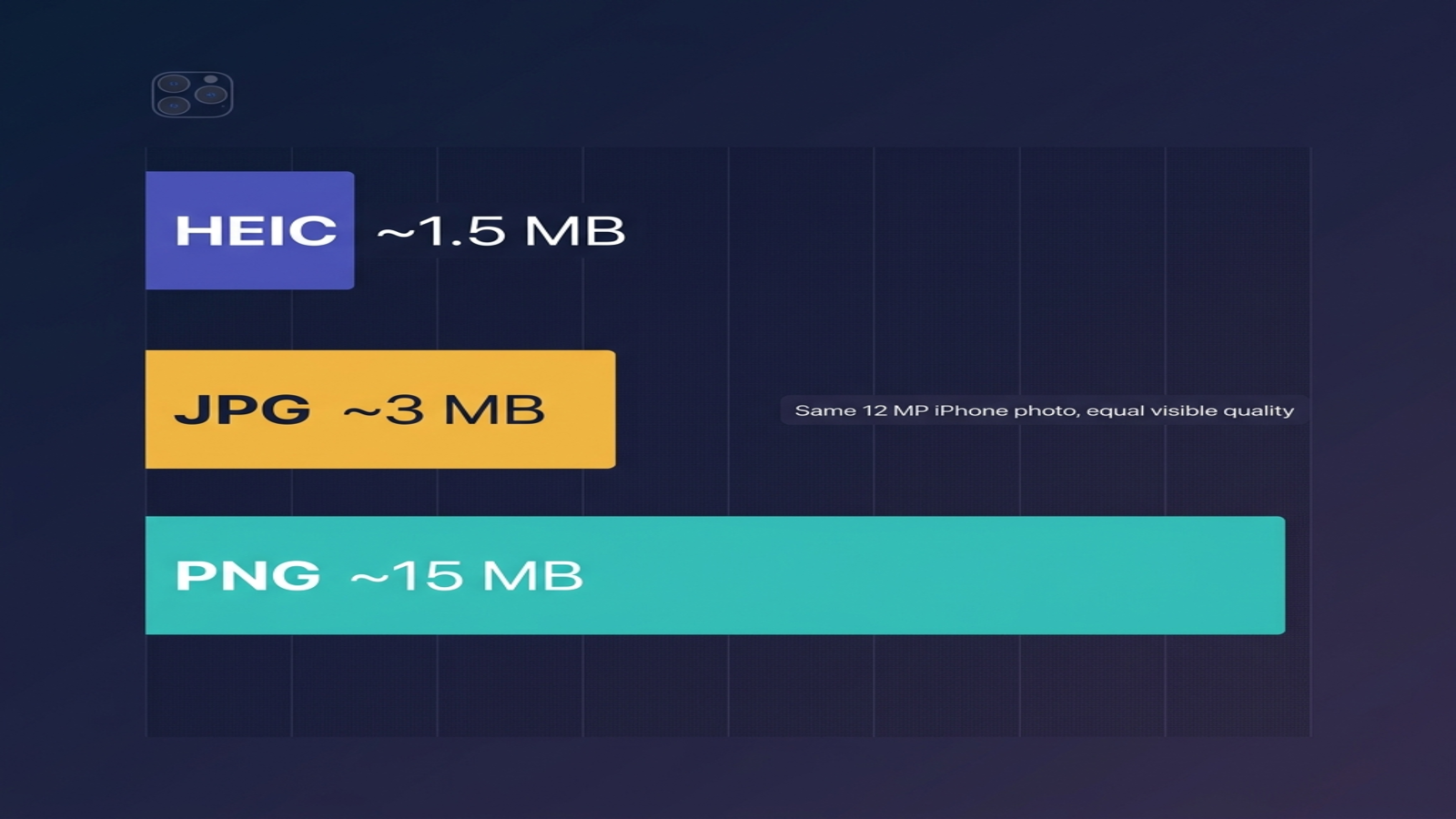
In our tests on a 12-megapixel iPhone 15 photo, the same image weighed in at:
- HEIC: 1.4–1.6 MB
- JPG (quality 92): 2.8–3.2 MB
- PNG (24-bit): 12–18 MB
That's roughly a 10× gap between HEIC and PNG, and it's the single biggest reason "convert all my photos to PNG" is almost never the right answer. Multiply by a year of iPhone shooting and you're looking at hundreds of gigabytes of disk space you didn't need to spend.
The gap shrinks dramatically for non-photo content. A 1080p screenshot of a code editor — flat colors, lots of text — might be 250 KB as PNG and 200 KB as HEIC. PNG's lossless DEFLATE thrives on flat colors and repeating patterns; HEVC's psychovisual model gains very little when there's no real photographic content to throw away.
The rough rule: PNG is huge for photos and reasonable for graphics.
2. Lossy vs lossless — does converting HEIC to PNG lose quality?
No. And this is one of the few format conversions where the answer is genuinely no.
PNG is lossless. When you convert HEIC to PNG, the converter decodes the HEIC's HEVC data into pixels, then writes those pixels into a PNG container without throwing anything away. The PNG you get out is bit-for-bit identical to whatever the HEIC was holding internally.
Where the loss already happened — and you can't undo it — was inside the HEIC itself. HEIC is lossy. The original sensor data from your iPhone went through HEVC compression at capture time, and you've been looking at that compressed version ever since.
The practical takeaway: if you need a lossless copy of a HEIC for editing, archival, or further conversion, PNG is the most faithful container you can get. It carries everything the HEIC has, with nothing added and nothing removed. Compare that to the HEIC → JPG path, which loses additional information at every save. We covered that tradeoff in HEIC vs JPG.
If you ever round-trip the same image — HEIC → PNG → HEIC again — the second HEIC will lose a small amount of quality from the re-compression, even though the PNG step in the middle was perfect. So treat the PNG as a final or intermediate output, not as a way to "refresh" a HEIC.
3. Transparency — only one of these formats actually carries it
PNG has a real alpha channel. Every pixel can be partially or fully transparent. This is why PNG became the standard for logos, icons, UI cutouts, sticker assets, and anything that has to overlay another image cleanly.
HEIC technically supports an alpha channel in the spec — the HEIF container has an "alpha auxiliary image" type. But in practice, almost no consumer software exposes it. iPhone photos never contain transparency. If you import a PNG with an alpha channel into Photos.app and then export as HEIC, the alpha is silently flattened against a background — which is rarely the colour you wanted.
So for any asset where transparency is part of the meaning — a logo on a coloured site, an icon over a photo, anything for a design system — PNG is the format you actually need. Convert your HEIC to PNG, then add or restore transparency in your editor; HEIC won't carry it through for you.
4. Compatibility across devices and apps
This is where HEIC's licensing situation actually costs you something, and where PNG's W3C lineage pays off.
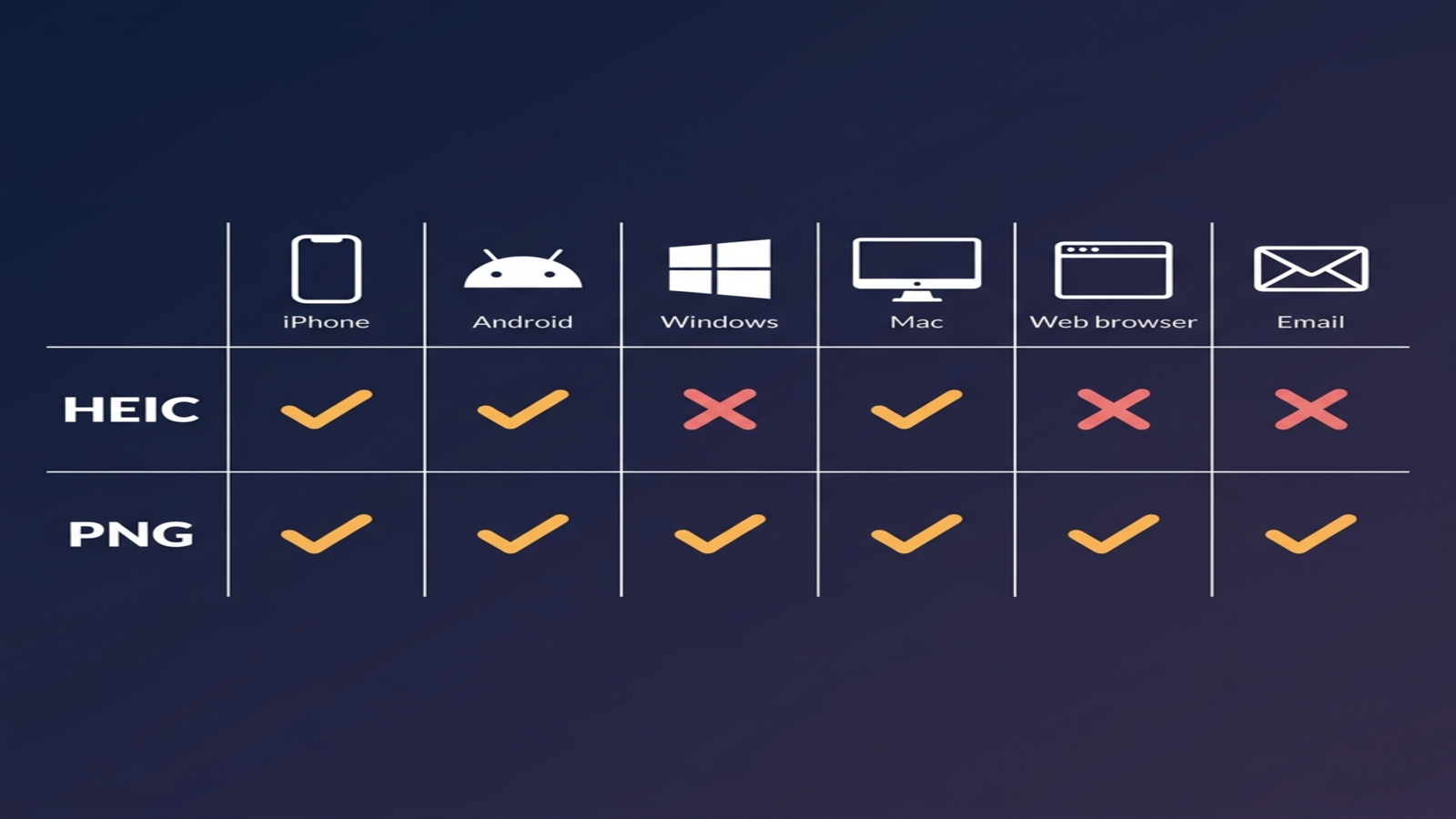
| Where | HEIC | PNG |
|---|---|---|
| iPhone, iPad, Mac (native apps) | Native | Native |
| Windows 11 | Needs paid HEVC extension | Native, since the Windows 95 era |
| Android (Pixel 8+, Galaxy S22+) | Native | Native |
| Older Android (pre-2022) | Often broken | Native |
| Chrome, Firefox, Edge (web) | Not natively rendered | Native |
| Safari (web) | Native, since macOS 11 / iOS 14 | Native |
| Gmail, Outlook, Slack | Often render blank | Native |
| Photoshop, Lightroom, Figma | Native (CC 2023+) | Native |
| GitHub, Notion, Confluence | Not previewed inline | Previewed inline |
| Print labs and photo books | Often rejected | Accepted |
PNG is one of the three image formats — alongside JPG and GIF — that every browser has rendered for decades without any installation. HEIC is still missing from Chrome and Firefox in 2026, and from any developer tool that builds on top of them.
If you've ever sent a HEIC to a Windows or older-Android friend and they got a blank icon, you've hit this. We have a step-by-step fix for that exact scenario: HEIC won't open on Windows 11. The conversion approach in that article applies to PNG output too.
5. Color depth, HDR, and the metadata only HEIC carries
HEIC stores 10 bits per color channel — 1,024 brightness steps per channel, against PNG-24's 256. That's the difference between visible banding in skies and gradients (8-bit) and the headroom needed for HDR display (10-bit).
HEIC also carries metadata that PNG simply doesn't have a slot for:
- HDR gain maps for displays that support more dynamic range than sRGB
- Live Photo sidecars — the 1.5 second video before and after the still
- Depth maps for Portrait mode photos, used to redo bokeh later
- Burst groupings that survive across iCloud sync
- Multiple images per file — HEIF can hold image sequences and animations natively
Convert HEIC to PNG and all of this is dropped. The PNG you get is a flat, 8-bit-per-channel still image. That's perfectly fine for most use cases — sharing, editing, embedding — but it's worth knowing if you ever expected your converted PNG to "remember" the Portrait mode blur or Live Photo motion. It can't.
There is a 16-bit-per-channel variant of PNG (PNG-48), which a handful of editors emit and even fewer viewers render correctly. It will hold the higher color depth, but it doesn't carry HDR metadata in any standard way, and most browsers tone-map it down to 8-bit on display. So PNG-48 is mostly a print-and-archive workflow, not a sharing format.
EXIF — capture time, GPS, lens, and camera info — survives in both formats, but only if your converter chooses to preserve it. Some online converters strip EXIF without saying so. Browser-based converters that run locally, including our HEIC to PNG tool, preserve EXIF by default.
6. Future-proofing and AVIF
Neither format is going anywhere fast, but the trajectories look very different.
PNG has been stable since the 90s and has the backing of W3C, every browser vendor, and every operating system. It will outlive most of the people reading this article. It's also reaching a quiet limit — the 8-bit color ceiling and the absence of HDR keep it out of modern photo workflows. But for graphics, screenshots, and lossless intermediates, no one is replacing it.
HEIC is more recent and tied to HEVC's licensing situation. The format itself is fine; the codec is the question mark. AVIF, which uses the royalty-free AV1 codec, achieves comparable compression to HEIC and is already supported natively by Chrome, Firefox, Safari, and Windows 11. If a future iPhone ever quietly switches its camera default from HEIC to AVIF, the world wouldn't change much.
For now: HEIC is fine for iPhone photo storage, PNG is fine for everything PNG was already fine for, and AVIF is the safer choice if you're picking a future-proof format for the open web. See our format cheat sheet for the full picture across HEIC, JPG, PNG, WebP, and AVIF.
When to use HEIC and when to use PNG
After all the technical detail, the practical mapping is fairly clean.
Keep HEIC for:
- iPhone photo storage where you don't share much outside the Apple ecosystem
- Anything where you want to preserve Live Photos, depth, or HDR
- Camera-original files you'll edit later in Photos.app or Lightroom
Convert to PNG for:
- Screenshots, especially with text, code, or UI
- Logos, icons, app store assets, anything with transparency
- Diagrams, charts, illustrations with flat colors
- Lossless intermediate copies you'll edit in Photoshop, Figma, or another design tool
- Embedded images in documents — Word, Notion, Google Docs
- Image assets in source-controlled repos, where byte-stable diffs matter
Convert to JPG instead for everyday photo sharing, email attachments, and most web uploads — it's the practical middle ground when you want compatibility but PNG is overkill. We compared that one in detail in HEIC vs JPG.
Should I convert HEIC to PNG? Decision matrix
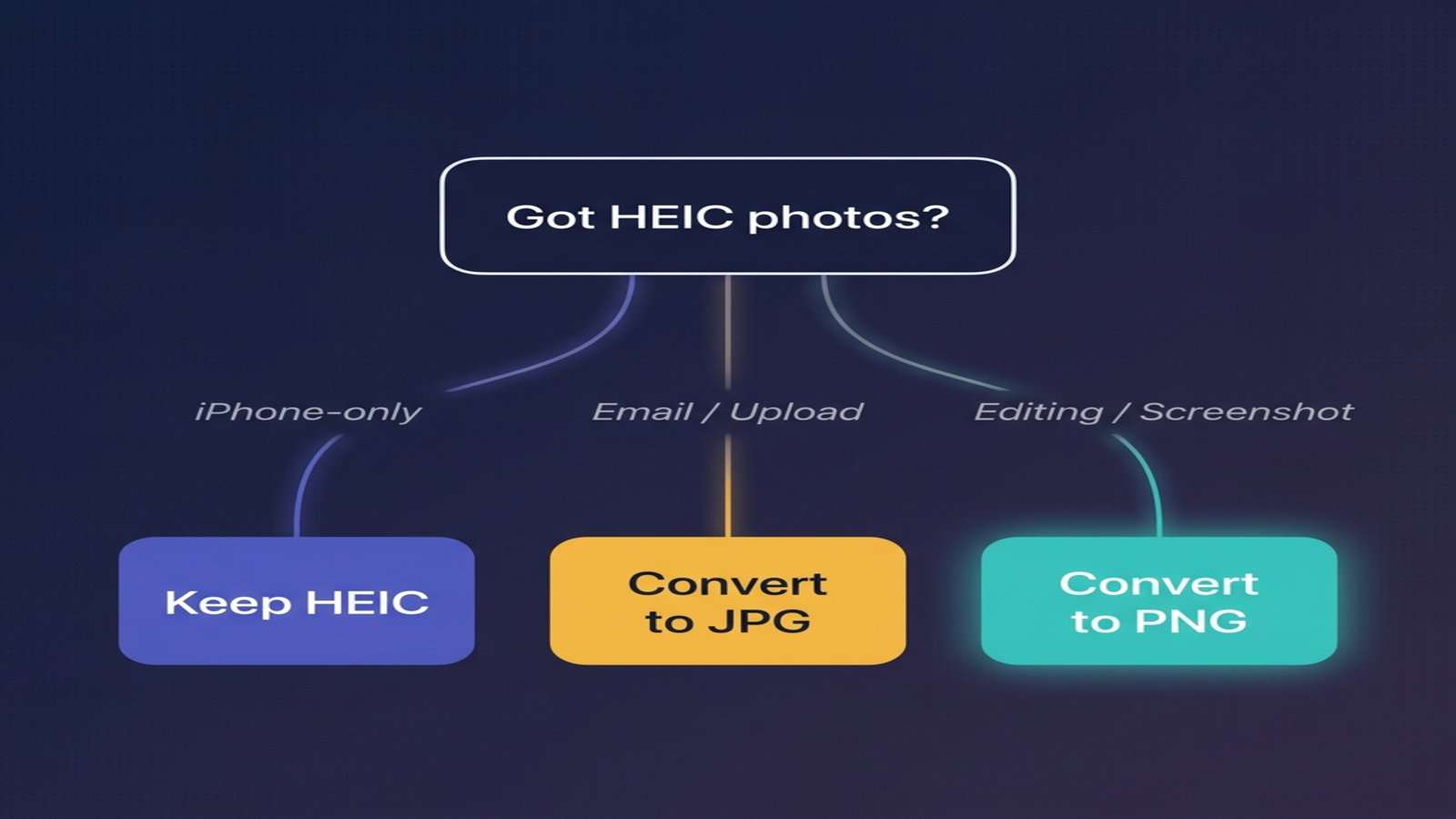
| Your situation | Best choice |
|---|---|
| iPhone storage tight, you don't share much | Keep HEIC |
| Sharing a casual photo with a Windows or Android user | Convert to JPG (smaller) |
| Sending a photo to a designer or print lab for editing | Convert to PNG (lossless) |
| Screenshot from your iPhone saved as HEIC | Convert to PNG |
| Logo or icon you need to use with transparency | Convert to PNG |
| Posting to Instagram, Facebook, Reddit | Either works (they re-encode anyway) |
| Embedding in a Word doc, Notion page, or PDF | Convert to PNG |
| Attaching to an email | Convert to JPG (PNG is too heavy for most photos) |
| Archiving the master copy of an iPhone photo | Keep HEIC; export PNG when editing |
| Combining multiple photos into one file | Convert straight to PDF |
| Building a website | Convert to WebP or AVIF |
The default rule: keep the HEIC original, export a PNG when you need lossless and a JPG when you need small. You get the storage and editing wins of HEIC, and the right derivative for whatever job comes up.
How to convert HEIC to PNG without losing quality
PNG is lossless, so the conversion itself never loses anything. What you actually need to watch for is everything around it:
- Convert from the original HEIC — not from a JPG already exported by your phone. Going HEIC → JPG → PNG bakes the JPG's compression artifacts in permanently, even though the final PNG is lossless. The PNG only preserves what you give it.
- Preserve EXIF if you can. Capture time, GPS, lens, and camera info are useful later. PNG supports EXIF, but some converters strip it because not every PNG viewer reads it. A converter that preserves it is meaningfully more useful for personal photos.
- Process locally if the photos are personal. Browser-based converters that run JavaScript or WebAssembly never upload your file to a server. Server-side converters do, which is a privacy issue if your photos contain people, faces, location data, or anything else you care about.
- Don't worry about a "quality" setting. PNG doesn't have one. The only knob worth touching is whether to write a 16-bit-per-channel PNG, which is rarely worth it unless you know your downstream tool actually reads it.
The same engine handles JPG when you want a smaller copy for sharing, WebP for web pages, or PDF when you're combining multiple photos into one document. On Mac, Preview can convert natively without any extra tool. On Windows, the in-browser path skips the codec problem entirely. On iPhone you can do it inside Safari, and on Android too.
HEIC vs PNG vs JPG: which one for which job?
People rarely ask just "HEIC vs PNG" — they're really comparing all three at once. The cleanest one-line summary for each:
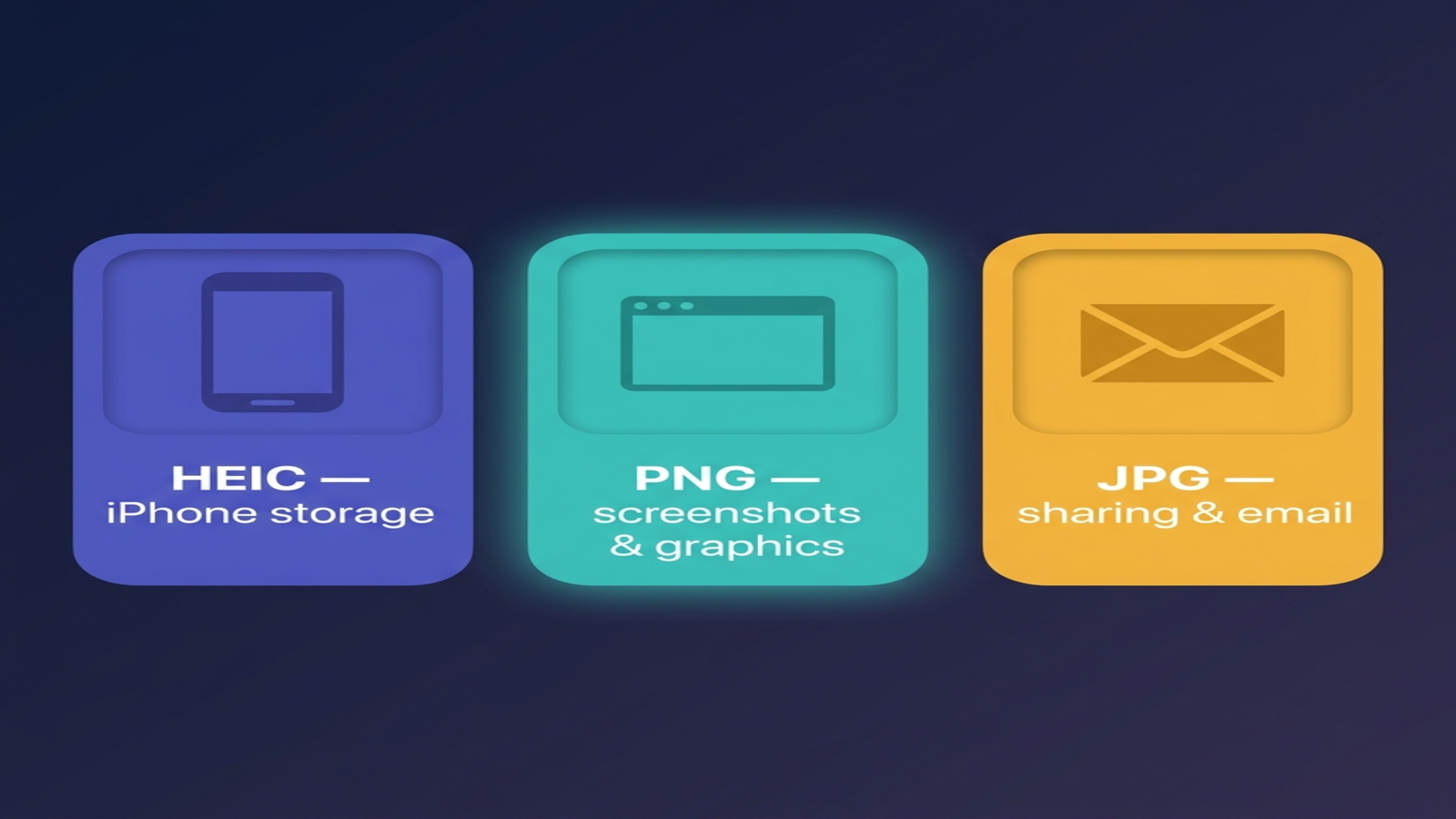
- HEIC — best for iPhone photo storage, HDR, and Live Photos. Loses a lot when shared outside Apple's ecosystem.
- PNG — best for screenshots, logos, diagrams, transparency, and lossless edits. Heavy for photos.
- JPG — best for everyday photo sharing. Lossy but universally accepted, and good enough for almost every photo scenario.
A working rule that fits most situations: photos go to JPG, graphics go to PNG, iPhone originals stay HEIC. When in doubt, the JPG/PNG split tracks lossy/lossless, and that almost always tells you the right answer.
If you're trying to figure out which platform to convert on, the blog has a step-by-step guide for each. The Windows 11 black-square fix is the one most people hit first, and the same in-browser approach works for converting straight to PNG.
Frequently asked questions
Related articles

HEIC vs JPG: 6 Differences That Actually Matter (2026)
HEIC vs JPG, in plain English: which is smaller, which loses quality, where each one breaks, and when you should convert. With a 2026 compatibility matrix.

How to Convert HEIC to JPG on a Mac: 5 Free Ways (2026)
Convert HEIC to JPG on a Mac with no extra software — Finder, Preview, Photos, Shortcuts, or Terminal. Tested on a real iPhone photo, including what happens to GPS.

How to Turn Off HEIC on iPhone (2026 Step-by-Step)
Stop your iPhone from saving photos as HEIC. iOS 26 + iOS 18 steps, the hidden Transfer setting, and what to do with HEICs you already have.