
How to Turn Off HEIC on iPhone (2026 Step-by-Step)
Stop your iPhone from saving photos as HEIC. iOS 26 + iOS 18 steps, the hidden Transfer setting, and what to do with HEICs you already have.
By HeicToPng Team

Quick answer
To turn off HEIC on iPhone, open Settings → Camera → Formats and choose Most Compatible. About 1.56 billion people use an iPhone worldwide (Backlinko, 2026), and almost all of them have a Camera app quietly writing HEIC by default. Three taps switch it to JPEG, and the change takes effect on the very next photo:
- Open Settings, tap Camera, then Formats.
- Choose Most Compatible.
- Go to Settings → Apps → Photos, scroll down, and make sure Keep Originals is NOT selected so iOS auto-converts on USB import to a Mac or PC. (On iOS 17 and earlier this lived at Settings → Photos → Transfer to Mac or PC; Apple moved it under Apps in iOS 18.)
That covers new photos and the export path for old ones. The rest of this post is the why, the tradeoff, and what to do with the HEICs already sitting in your library.
Why your iPhone saves photos as HEIC by default
HEIC became the iPhone default on September 19, 2017, the day iOS 11 shipped. Apple introduced the format at WWDC17 Session 503, framing it as a way to halve photo and video file sizes without visible quality loss. On its support page, Apple states that High Efficiency files are about half the size of their JPEG equivalents.
That single decision is why your iPhone produces files Windows and Android can't easily open. HEIC is the container (technically HEIF), and the pixels inside are compressed with HEVC, the same codec used for 4K video streaming. Apple licensed HEVC at the device level; Microsoft and Google did not, which is why the format works beautifully inside Apple's ecosystem and stumbles everywhere else.
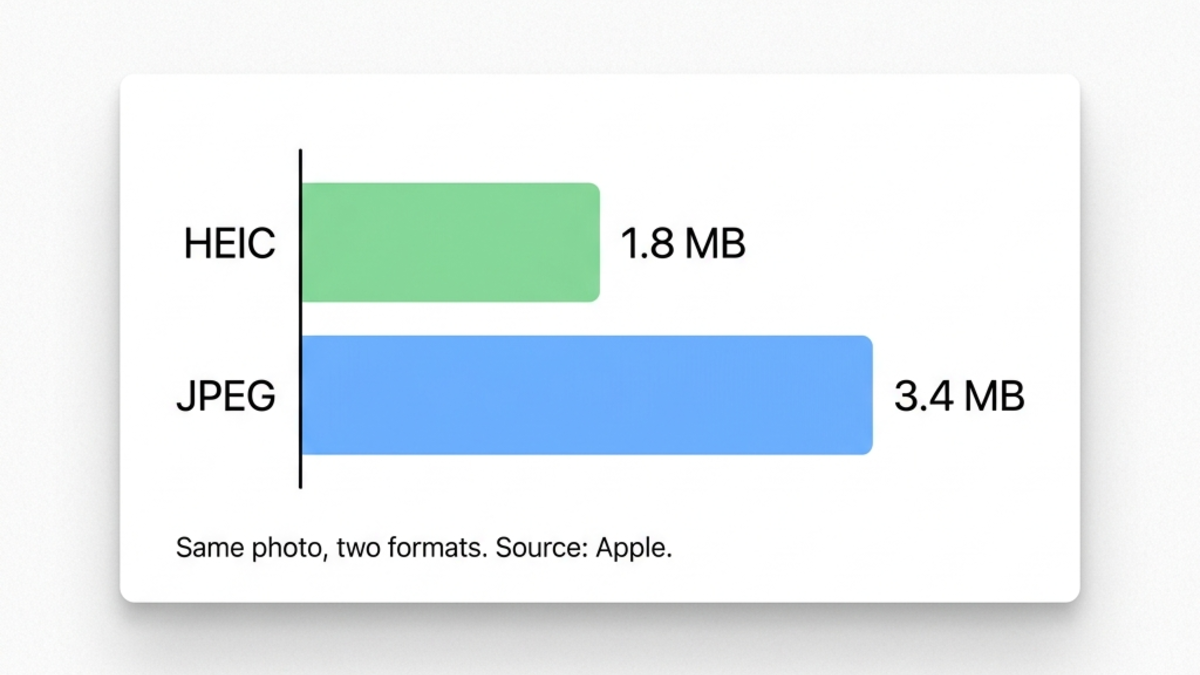
The chart above illustrates what Apple's halving means in practice: a typical 12-megapixel iPhone photo lands around 1.8 MB as HEIC and re-encodes to roughly twice that size as JPEG at comparable visible quality. The exact gap moves with scene complexity, HDR, and the motion track inside Live Photos, but the direction holds across thousands of shots.
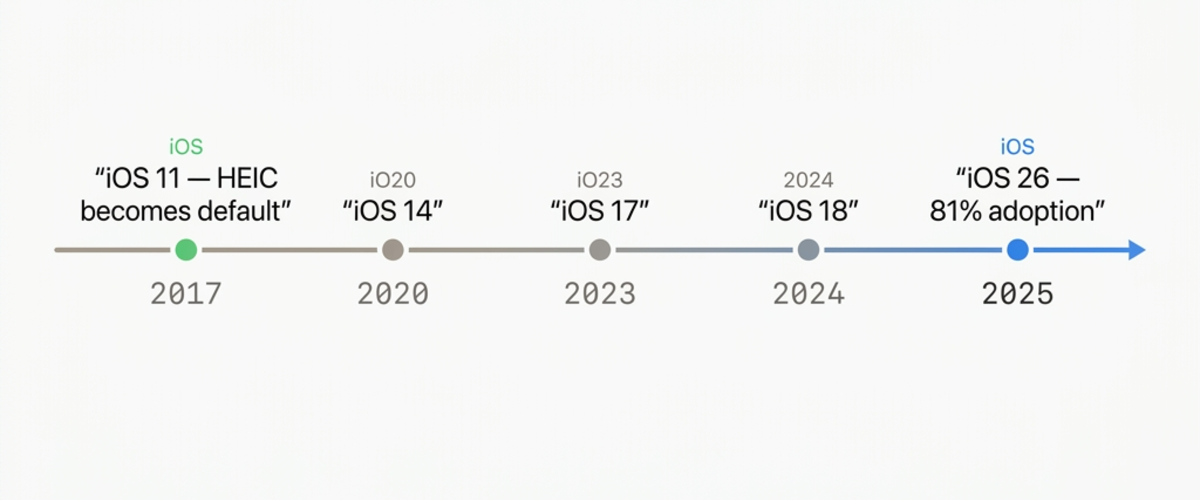
iOS 26 now runs on roughly 81% of active iPhones as of April 2026 (TelemetryDeck, 2026), and the Camera default has not changed in any release since iOS 11. If you've bought an iPhone in the last eight years and never touched the Formats setting, every photo you've taken is HEIC. For the technical breakdown of why HEIC compresses so much better than older formats, see our HEIC vs PNG and HEIC vs JPG comparison posts.
Step-by-step: switch iPhone Camera to JPEG (iOS 26 + iOS 18)
The path is identical on iOS 18 and iOS 26, and it has not moved meaningfully since iOS 11. Three taps and you're done. The setting takes effect immediately, with no restart and no library migration, and it applies to every Camera mode including Portrait, Pano, and Cinematic.
Settings, Camera, Formats, Most Compatible
- Open the Settings app on your iPhone.
- Scroll to Camera and tap it.
- Tap Formats at the top of the screen.
- Under Camera Capture, tap Most Compatible.
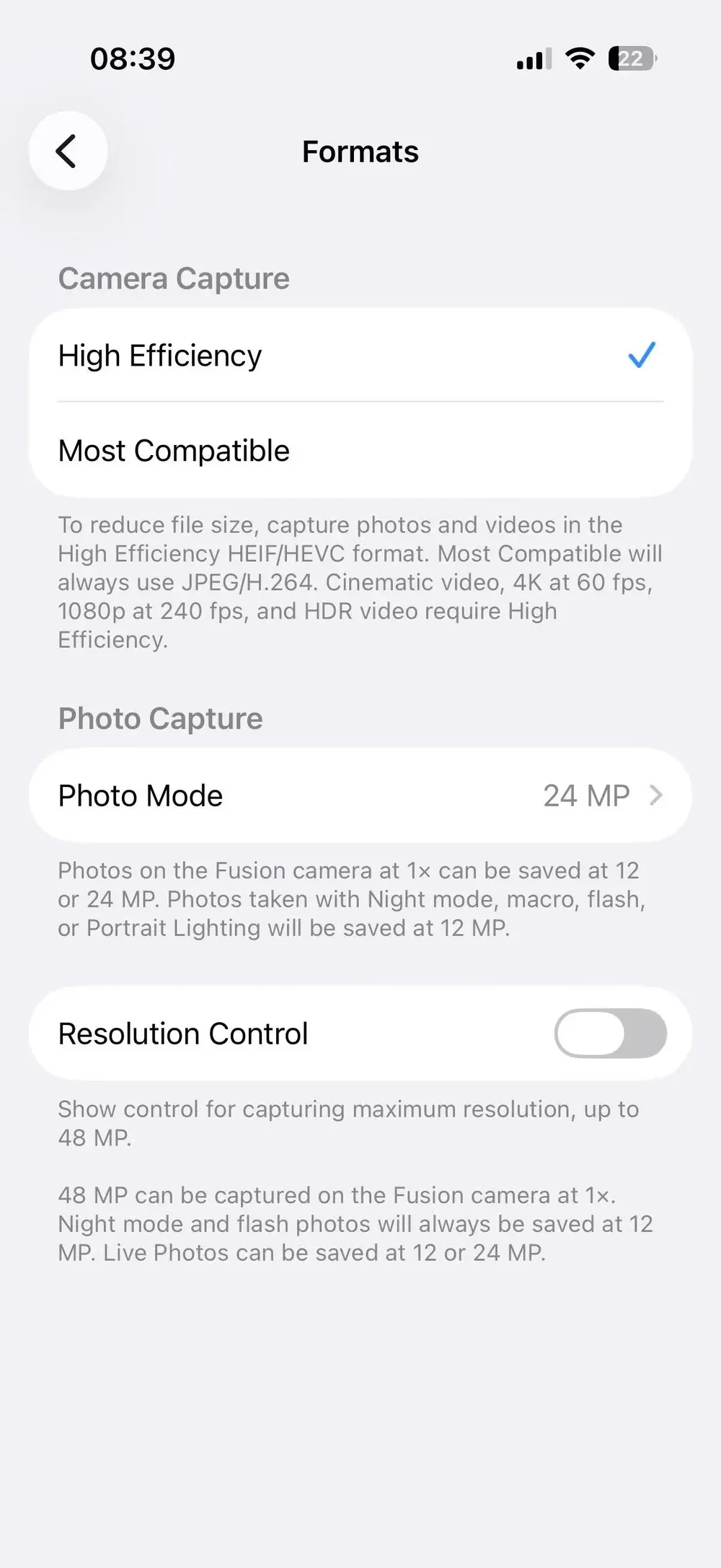
That's the default state on every iPhone out of the box. One tap on the row below switches the camera to JPEG and H.264 forever, or until you change it again.
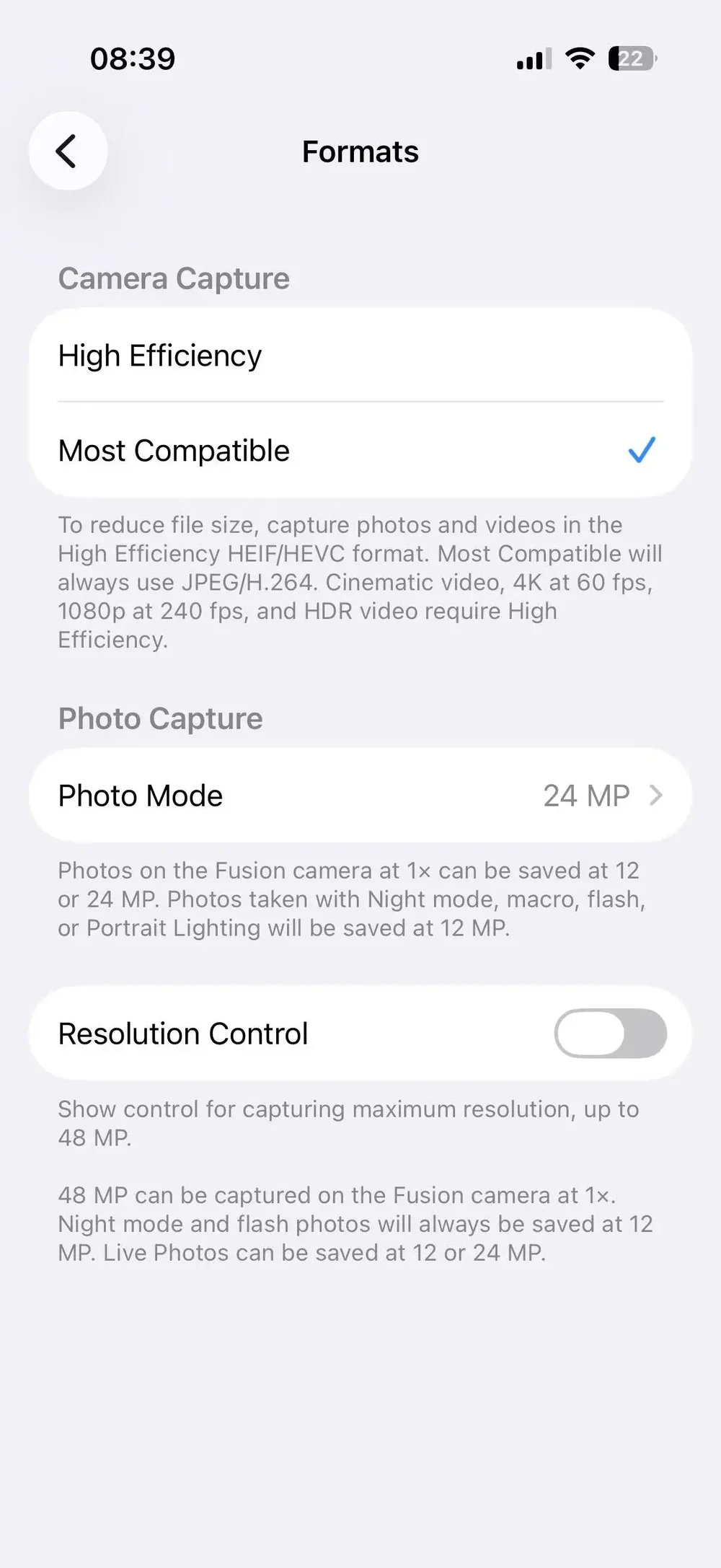
Take a test photo right after switching. The new file lands as a .JPG on the next AirDrop, email, or USB transfer. There's no visible difference in the Photos app itself, since iOS shows both HEIC and JPEG with the same thumbnail and same EXIF panel.
What "High Efficiency" vs "Most Compatible" actually means
Apple uses friendly labels, but the technical mapping is exact. Here's what each setting writes:
| Setting | Photo format | Video format |
|---|---|---|
| High Efficiency | HEIC (HEVC inside HEIF) | HEVC (H.265) |
| Most Compatible | JPEG | H.264 |
High Efficiency wins on file size. Most Compatible wins on cross-platform sharing. There is no third option, and there is no per-app override: the setting is global across Camera, Portrait, Burst, Live Photos, and screen-recording video. The only photos that ignore it entirely are screenshots, which always save as PNG regardless.
Does this convert existing HEIC photos?
No. This is the single most-missed point in the official Apple support article. The Formats setting changes only what the Camera writes from this moment forward. Every HEIC already in your library stays HEIC, and there is no built-in "convert all" command in the Photos app on iOS. That's where the next setting matters.
The hidden setting: Settings → Apps → Photos → Keep Originals
Almost every guide still points at the old iOS 17 path — Settings → Photos → Transfer to Mac or PC → Automatic. In iOS 18, Apple reorganized Settings and tucked app-specific settings under a new Apps section. The HEIC import behavior now lives at Settings → Apps → Photos, scrolled near the bottom, as a single option called Keep Originals. The wording flipped too: instead of "Automatic vs Keep Originals," there's now one item you tap to opt OUT of auto-conversion.
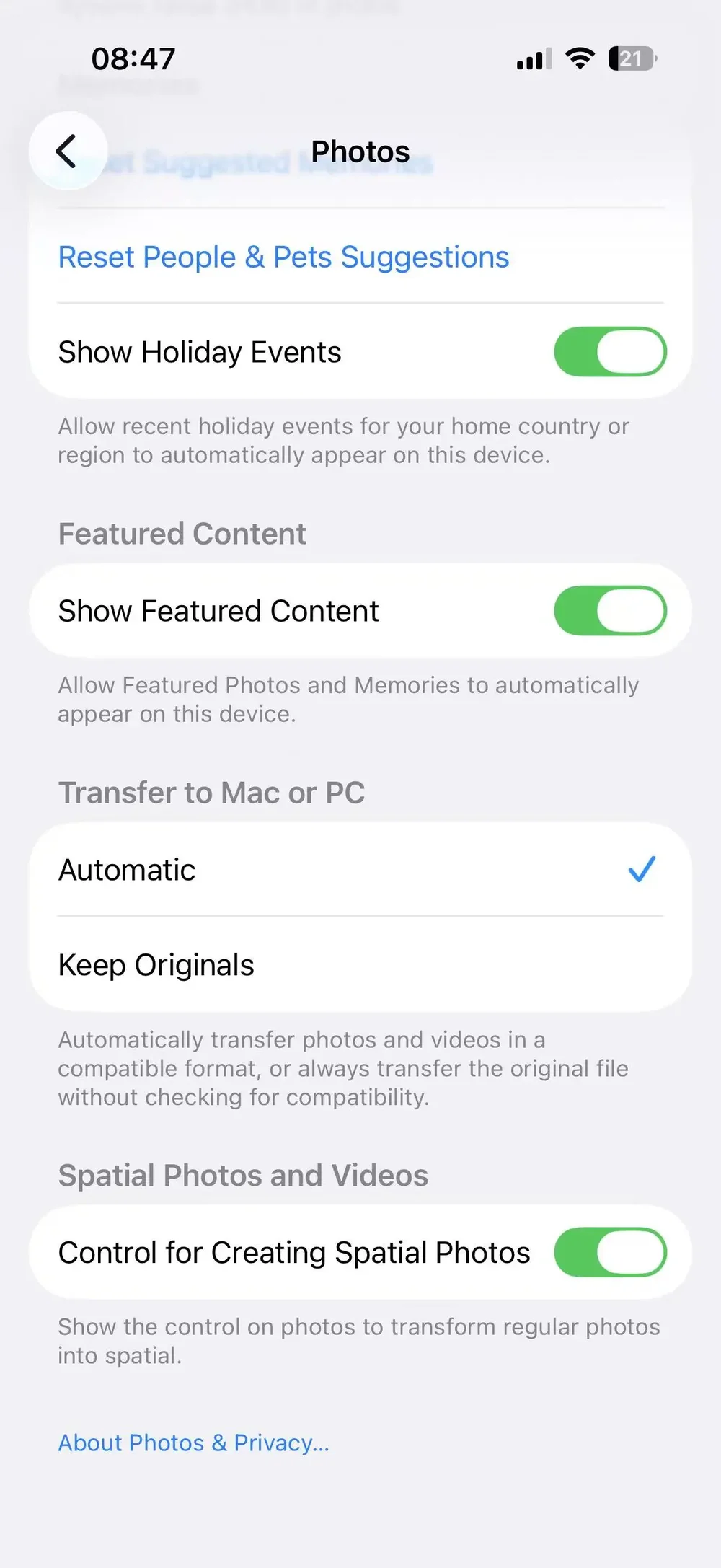
The default behavior is auto-conversion: when you plug your iPhone into a computer over USB, iOS transcodes HEIC and HEVC files to JPEG and H.264 on the fly during the copy. If your Windows PC keeps receiving HEIC despite the USB cable, it's because Keep Originals was selected at some point. Leave it unselected and iOS handles the conversion automatically.
Here's the catch most guides miss. This auto-conversion only kicks in for direct USB transfers. AirDrop, iMessage, email attachments, iCloud Photos, and third-party apps like WhatsApp all bypass it. AirDrop to a Mac handles HEIC natively because macOS supports the format; AirDrop to a non-Apple device or iCloud sync to a Windows PC will still hand over HEIC. So this is a partial fix, but it's the most powerful partial fix in iOS and worth verifying regardless.
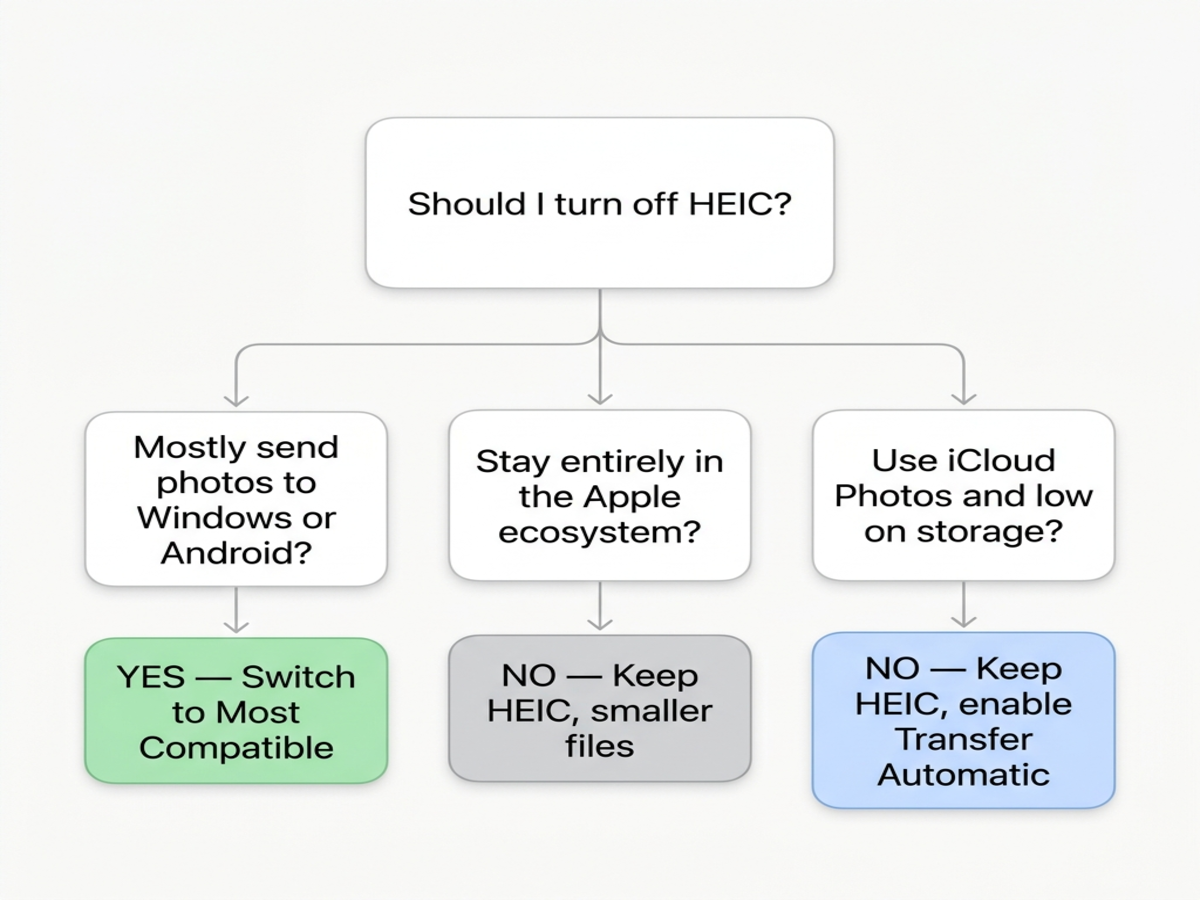
Should you actually turn off HEIC? A decision flowchart
Honest answer: most iPhone users probably shouldn't. With iPhone holding 59.2% of the US smartphone market (DemandSage, 2026) and Apple's AirDrop-to-Mac path handling HEIC transparently, the people you share photos with are increasingly on hardware that just works. Switching to JPEG doubles your photo storage footprint in exchange for compatibility you may not actually need.
We built and run this HEIC converter, and the pattern we see is consistent: most visitors arrive with one-off sharing problems, not a permanent format decision to make. For that audience, converting the specific photos you're about to send is faster than reformatting how every future shot gets stored. Flipping the global Camera setting for a one-time weekly share is overkill.
Three branches worth thinking through:
You share photos heavily to Windows or Android. Switch to Most Compatible. The storage hit is annoying, but you stop a recurring "I can't open this" thread on every share. Also bookmark our HEIC won't open on Windows 11 guide for the friends who get stuck before you remember to convert.
Everyone you share with is on Apple. Stay on High Efficiency. iCloud Photos, AirDrop to Mac, and iMessage all handle HEIC natively. You'd be paying 2x storage for zero gain.
You're on the 5 GB iCloud tier and constantly low on space. Definitely stay on High Efficiency. Apple states HEIC is about half the size of JPEG, and that math compounds across thousands of photos. The right fix here is per-share conversion, not a global Camera change.
What to do with HEIC photos already on your iPhone
The Formats setting is a forward switch, not a retroactive one. For the HEICs already on your phone, you've got three workable paths: verify Settings → Apps → Photos → Keep Originals is OFF and route everything through a USB cable to a computer, AirDrop selectively to a Mac (which handles HEIC natively), or convert in a browser. The third is the fastest when you only need a few photos.
In-browser conversion runs the HEVC decoder locally using a WebAssembly build of libheif. The HEIC file you drop in never leaves your device, never hits a server, and never sits in someone else's logs. That matters for personal photos, ID scans, medical paperwork, anything you wouldn't paste into a random web form. For the broader format trade-offs across HEIC, PNG, JPG, WebP, and AVIF, all the formats we support lays out the side-by-side.
When you need PNG specifically (for image editing, screenshots-style use, or anywhere you'd reach for a lossless file), convert your existing HEICs to PNG directly from your iPhone's browser. If you only need a small file for email or a web form, convert HEIC to JPG in your browser is the better choice because JPG is roughly 5-10x smaller than PNG for typical photos.
The conversion happens in Safari or Chrome on the iPhone itself, with no app install, no Apple ID, no upload. Drop in HEIC files, get PNGs out, save to Photos or share straight from the result.
Edge cases nobody talks about
The Formats setting is simple, but the surrounding behavior has corners that bite people. Three worth knowing before you flip the switch.
Screenshots are always PNG (not HEIC)
This trips up everyone at least once. The Formats setting controls the Camera. Screenshots, screen recordings, and the markup tool all bypass it entirely. Screenshots save as PNG no matter what Formats is set to. Screen recordings save as H.264 MP4. So if you ever wondered why your screenshots open fine on Windows but your photos don't, that's why.
Live Photos and ProRAW after the switch
Live Photos still work after switching to Most Compatible, but the still frame saves as JPEG and the motion component saves as H.264 MOV instead of HEVC. The result is a Live Photo that's roughly twice the storage footprint of the High Efficiency version, with identical playback in the Photos app.
ProRAW is a separate setting (Settings → Camera → Formats → Apple ProRAW & Resolution Control) and is unaffected by the Most Compatible toggle. ProRAW writes a DNG file regardless, which is already a widely supported open format. If you shoot ProRAW exclusively, the High Efficiency vs Most Compatible decision doesn't apply to those captures at all.
The storage tradeoff with real numbers
Based on Apple's stated approximately 50% reduction for HEIC versus JPEG, 1,000 typical 12-megapixel iPhone photos work out to roughly 1.8 GB as HEIC and roughly 3.4 GB as JPEG. Multiply that across a typical photo library, which routinely runs into the tens of thousands of photos over years of iPhone ownership, and the gap reaches double-digit gigabytes quickly.
That number matters more than it used to. iCloud's free tier is still 5 GB, the same it was in 2011. The 50 GB iCloud+ tier costs about $0.99 per month in the US. For someone living inside the free tier, switching to Most Compatible can be the difference between staying free and paying every month, purely on photo storage. That's a real cost, not a hypothetical one, and it's worth weighing before you flip the switch.
Frequently asked questions
How do I stop my iPhone from saving photos as HEIC?
Open Settings, tap Camera, then Formats, and choose Most Compatible. From that moment on, new photos save as JPEG and new videos save as H.264. Photos you took before the switch stay HEIC, so they still need conversion before you share them with Windows or Android friends.
What's the difference between High Efficiency and Most Compatible?
High Efficiency saves photos as HEIC and video as HEVC, which Apple states is about half the file size of JPEG at the same visible quality. Most Compatible reverts to JPEG and H.264, the formats every device on Earth understands. Compatibility costs storage; efficiency costs cross-platform sharing.
Why does my iPhone save photos as HEIC instead of JPEG?
HEIC has been the default since iOS 11 shipped in September 2017. Apple introduced it at WWDC17 to cut photo and video file sizes in half without dropping quality, freeing up iCloud storage and shrinking iMessage sends. The setting is on by default unless you actively change it.
Does turning off HEIC convert the photos I already have?
No. The Formats switch only changes what the Camera app writes from now on. Existing HEIC files in your library stay HEIC. To deal with the old ones, plug into a Mac or PC over USB (iOS auto-converts on import unless Keep Originals is selected under Settings → Apps → Photos), or convert them to PNG or JPG in your browser before sharing.
Frequently asked questions
Related articles

How to Convert HEIC to JPG on a Mac: 5 Free Ways (2026)
Convert HEIC to JPG on a Mac with no extra software — Finder, Preview, Photos, Shortcuts, or Terminal. Tested on a real iPhone photo, including what happens to GPS.

HEIC vs PNG: Quality, Size, and When to Convert (2026)
HEIC vs PNG compared on file size, quality, transparency, and compatibility — with a clear take on when converting HEIC to PNG is actually worth it.

HEIC vs JPG: 6 Differences That Actually Matter (2026)
HEIC vs JPG, in plain English: which is smaller, which loses quality, where each one breaks, and when you should convert. With a 2026 compatibility matrix.